Гайд по промптам и правкам GPT Image 2.5 для авторов
Как писать промпты и править в GPT Image 2.5: шестичастный бриф, Sketch, правки через комментарии, многоходовые API-ходы, настройки качества и прозрачные PNG — плюс те же привычки на GPT Image 2 в OmniArt.
GPT Image 2.5 вознаграждает бриф, который можно разобрать, а не более длинный список прилагательных. Модели от 8 сентября 2026 — ChatGPT Images 2.5, API Flare и API Sunburst — заточены под точечные правки, сохранение референса и более быстрые черновики. Они всё равно проваливаются, когда промпт смешивает пять задач, выдумывает лишний копирайт или просит десятый ход спасти первый кадр, который никогда не был принят.
Этот гайд — повторяемая процедура. Текст промпта при вставке оставляйте на английском. GPT Image 2.5 Flare и GPT Image 2.5 Sunburst в OmniArt используют ту же шестичастную структуру, что и GPT Image 2. В OmniArt доступны пять настроек Качества от Low до Max, 1080p / 1440p / 2160p, до 16 референсов, Seed и 1–4 изображения за запуск. Sketch и пины комментариев на изображении есть только в ChatGPT — это не функции OmniArt.
Примечание
В пространстве изображений берите Flare для черновиков и Sunburst для финалов с большим числом правок. ChatGPT нужен, когда вам нужны @Sketch или правки по комментариям; в OmniArt выгрузите последний принятый кадр как референс и напишите точечный промпт правки.
Шестичастный бриф (по-прежнему по умолчанию)#
Используйте этот порядок на каждой поверхности — ChatGPT, Image API, Responses API и OmniArt:
Компактный пример:
Структура делает сбои диагностируемыми. Не тот продукт → субъект или роль референса. Не тот макет → композиция. Не тот текст → сначала укоротите цитируемый копирайт, прежде чем добавлять язык стиля.
Если вы уже пользуетесь гайдом по промптам GPT Image 2, не выбрасывайте его. 2.5 добавляет инструменты вокруг этого брифа. Она его не заменяет.
Шесть привычек, которые всё ещё себя окупают#
- Сначала назовите, что сдаёте. Постер, packshot, стикер, merch-мок и иконка приложения подразумевают разные правила макета.
- Описывайте отношения полными предложениями. Скажите, что стоит выше, позади или рядом с чем-то ещё.
- Цитируйте точный видимый копирайт. Держите его коротким, сохраняйте капитализацию и скажите, где он должен стоять.
- Дайте каждому входному изображению одну роль. Идентичность, геометрия продукта, поза, палитра или среда — не все пять сразу.
- Меняйте по одному сбою за раз. Полная переписка уничтожает сравнение между ходами.
- Черновик дёшево, фиксация дорого. В OmniArt: Flare на Low и 1080p для композиции; Sunburst на High, xhigh или Max только после того, как кадр принят.
Процесс 1: Sketch, затем описание#
ChatGPT Images 2.5 добавляет Sketch. Наберите @Sketch, нарисуйте макет и приложите текстовый бриф. Рисунок — композиционный референс, а не готовая иллюстрация. Держите его нарочито грубым: прямоугольники вместо мебели, стрелки для света, палочный человечек для масштаба.
Делайте так
- Рисуйте только структуру — горизонт, блок субъекта, текстовая полоса, негативное пространство.
- В том же сообщении вставьте шестичастный бриф. Скажите модели, что скетч — это макет, а текст — стиль, материалы и копирайт.
- Если первый кадр близок, комментируйте регион, который неверен. Не перерисовывайте весь скетч, пока не сломана сама композиция.
Промпт для вставки после скетча планировки комнаты
Sketch — взаимодействие ChatGPT. Image API не документирует эквивалентный параметр sketch; отсканированный doodle, загруженный как референс, — API-замена, с явной ролью: «Image 1 is a composition sketch only. Do not copy the line style.»
Процесс 2: комментируйте то, что неверно#
Потребительский питч OpenAI — правки через комментарии: отметьте объект, скажите изменение, оставьте остальной кадр. API-эквивалент — короткий edit-промпт плюс предыдущее изображение, опционально с маской, и action: "edit" на инструменте Responses API.
Пишите комментарии как продакшен-заметки, а не как новые mood board’ы.
| Слабый комментарий | Более сильный комментарий |
|---|---|
| Make it pop | Increase contrast on the speaker grille only; keep the plinth and wall unchanged |
| More premium | Replace the plastic-looking buttons with brushed warm silver; do not change shape or placement |
| Fix the text | Change the poster headline to exactly "FUTURE MADE HUMAN"; keep size, tracking, and position |
| Different vibe | Keep subject, pose, and crop. Change only the time of day to blue hour |
Тест простой: если ретушёр мог бы сделать заметку за пять минут, модель должна пытаться только эту заметку. Если заметка — «сделай кампанию», вы просите новую генерацию, а не правку.
Процесс 3: многоходы без «плавления» субъекта#
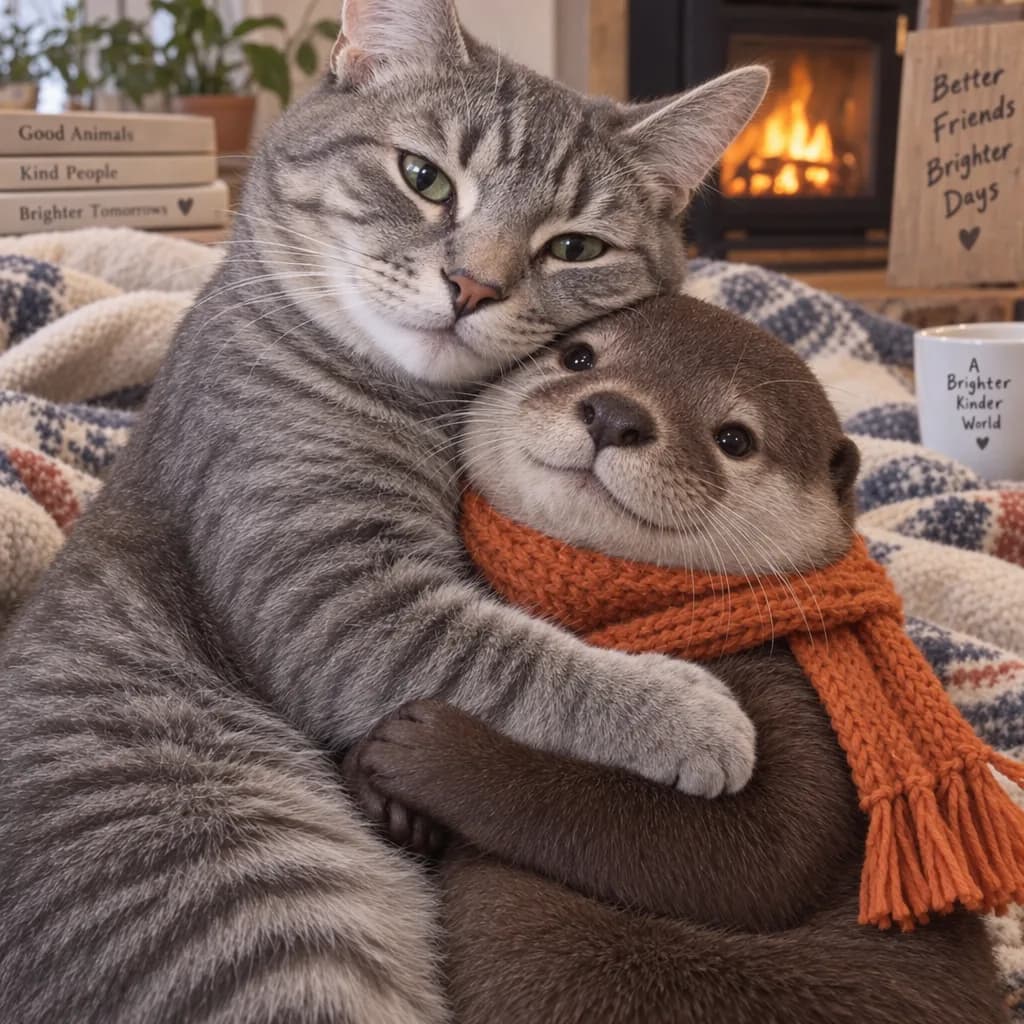
Пример из документации OpenAI — правильный паттерн: сгенерируйте серого tabby-кота, обнимающего выдру в оранжевом шарфе, затем отправьте второй ход — «Now make it look realistic» — с предыдущим изображением в контексте. Шарф, объятие и два животных должны пережить смену стиля.
Правила API, которые важны
- Image API: одноразовая генерация или правка. Хорошо для packshot’а или masked inpaint.
- Responses API: держите
previous_response_idили передавайте обратно idimage_generation_call. Так должна работать fidelity через несколько ходов. action: "auto"даёт инструменту генерировать или править.action: "generate"всегда делает новое изображение.action: "edit"ошибается, если в контексте нет изображения.- Форсируйте generate, когда нужна новая композиция. Форсируйте edit, когда композиция уже принята.
В ChatGPT то же правило социальное: не начинайте новый чат ради «сделай кружку коралловой». Оставайтесь в треде, чтобы предыдущие правки оставались в контексте. В OmniArt держите ту же нить намерения: переиспользуйте предыдущий результат как референс и однострочный промпт правки — интерфейса пинов комментариев нет. OpenAI говорит, что 2.5 с большей вероятностью пронесёт правки дальше; вам всё равно нужно не переписывать весь бриф на каждом ходу.
Процесс 4: прозрачные материалы#
И Flare, и Sunburst поддерживают background: "transparent". Ставьте output_format в png или webp. JPEG не держит alpha-канал, поэтому это неверный формат для стикеров, merch-печати, игровых спрайтов и иконок инфографики.
Затем проверяйте реальный alpha, а не шахматную доску в сжатом превью. Края, пар, волосы и стекло — обычные места утечек. Если первый прозрачный проход Flare грязный, перегоните тот же промпт на Sunburst, прежде чем начинать маскировать вручную.
В OmniArt попросите прозрачный фон в промпте на Flare или Sunburst, затем проверьте alpha в скачанном файле. Пространство не выносит поле API OpenAI background: "transparent" отдельным контролом. Если края ломаются, перегоните на Sunburst, прежде чем маскировать вручную. GPT Image 2 по-прежнему опирается на плоское студийное поле и ручной knockout, когда alpha нужна быстро.
Процесс 5: поднимайтесь по лестнице качества намеренно#
GPT Image 2.5 добавляет xhigh и max поверх low, medium и high. По умолчанию — auto. Собственный совет OpenAI — использовать low для черновиков и сравнивать более высокие настройки для финалов, потому что качество, задержка и число токенов двигаются вместе.
Рабочая лестница:
low+ Flare — существуют ли макет и копирайт?mediumилиhigh+ Flare — материал правдоподобен?highилиxhigh+ Sunburst — переживает ли принятый кадр товарный кроп?max— только если названная деталь всё ещё ломается наxhigh(строчки, мелкий текст, украшения).
Не прыгайте на max на непринятой композиции. Вы будете ждать дольше, чтобы узнать, что заголовок всё ещё неверен. Стриминг partial’ов (partial_images 1–3) может сделать ожидание короче; каждый partial добавляет в счёт дополнительные 100 image output tokens.
Готовые к копированию промпты#
В каждой локализованной версии они остаются на английском, чтобы вы могли вставить их без изменений. Меняйте только продукт, копирайт и соотношение сторон.
Packshot с референсом геометрии#
Билингвальный постер#
Прозрачная merch-графика#
Смена стиля с сохранением идентичности#
Точечная смена фона#
Проверяйте каждый результат по одному списку: копирайт, идентичность, геометрия, фон и запрещённые промптом лишние элементы. Если проваливаются два пункта, сначала чините более дорогой (обычно копирайт или геометрия).
Выбирайте Flare, Sunburst или GPT Image 2#
| Ситуация | Модель |
|---|---|
| Исследуете макеты и копирайт | Flare на Low / Medium в OmniArt |
| Прозрачный стикер или иконка | Flare, затем Sunburst, если края ломаются (попросите прозрачность в промпте; проверьте экспорт) |
| Многоходовая правка продукта или кампании | Sunburst с загрузкой референсов между ходами |
| Sketch или правки пинами комментариев на изображении | ChatGPT Images 2.5 — не OmniArt |
| Уже проверенный процесс на GPT Image 2 | GPT Image 2; OpenAI Batch API — отдельный сервис вне OmniArt |
Сравнение версий — в GPT Image 2.5 vs GPT Image 2. Раскол на две модели — в Flare vs Sunburst. Что вышло 8 сентября — в обзоре запуска.
Лимиты, которые стоит вписать в бриф#
OpenAI по-прежнему документирует эти ограничения для моделей 2.5:
- Сложные промпты могут занимать до двух минут.
- Текст всё ещё может сесть не туда или потерять ясность — цитируйте меньше слов, а не больше прилагательных.
- Повторяющиеся персонажи и бренд-марки могут дрейфовать между отдельными генерациями. Переиспользуйте принятое изображение как референс вместо повторной генерации из текста.
- Плотные макеты всё ещё могут смещать объекты. Если скетч делает работу макета — скажите об этом.
- Policy-блоки возвращают
moderation_blocked. Не ретрайте тот же промпт; измените запрос.
Происхождение на стороне OpenAI автоматическое (C2PA плюс SynthID). Это не заменяет ваш собственный разбор likeness, бренда и заявленных фактов о реальном мире.
С чего начать в OmniArt#
Откройте пространство изображений, выберите GPT Image 2.5 Flare и прогоните один из готовых брифов на Low / 1080p. Если макет и копирайт проходят, переключитесь на Sunburst и один раз поднимите детализацию или разрешение. Если проваливаются — меняйте одну строку промпта, а не весь абзац.
Когда кадр принят, отправьте его в видео из того же аккаунта — Seedance, Veo, MiniMax H3 или Grok Imagine — не пересобирая продукт в другом инструменте. Для правок в OmniArt используйте загрузку референсов; Sketch и пины комментариев оставьте ChatGPT.