Time for Prayer
A World That Shifts Quietly.
What is the Time for Prayer effect?
The Time for Prayer template turns your photos into a short AI video with a predesigned look and motion. The example on this page shows the style you can expect before you generate.
Add the requested photos, review any optional prompt, and generate without a video editor. OmniArt keeps the finished clip in your creative history so it is ready to download and share.
Key facts
- Output
- 6s video · 720p
- You need
- 1 photo
- Text prompt
- Not needed
- Credits
- 8 credits per video
- Typical time
- A few minutes
More AI effects to try
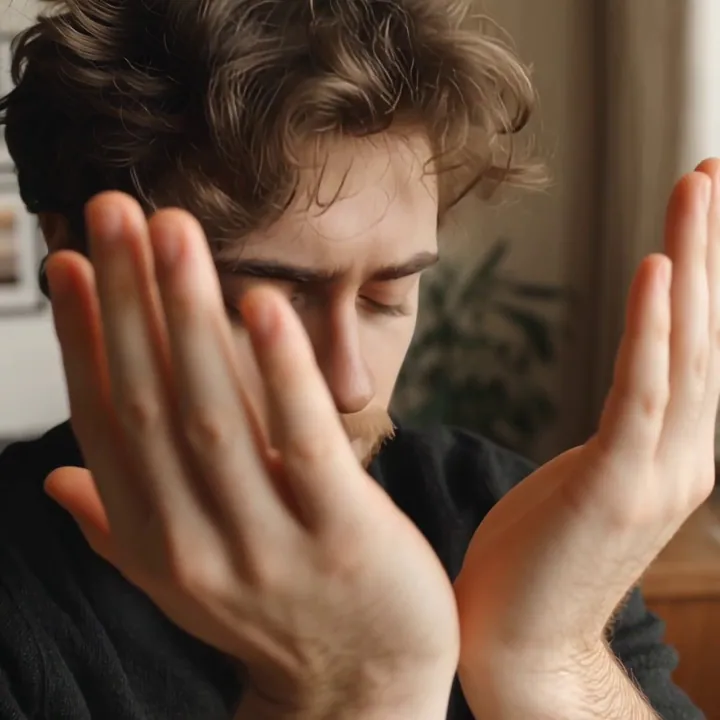 Video
The Prayer
Raise your hands and pray.
 Video
First time setting up a tent
The first time setting up a tent, I was laughed at by squirrels.
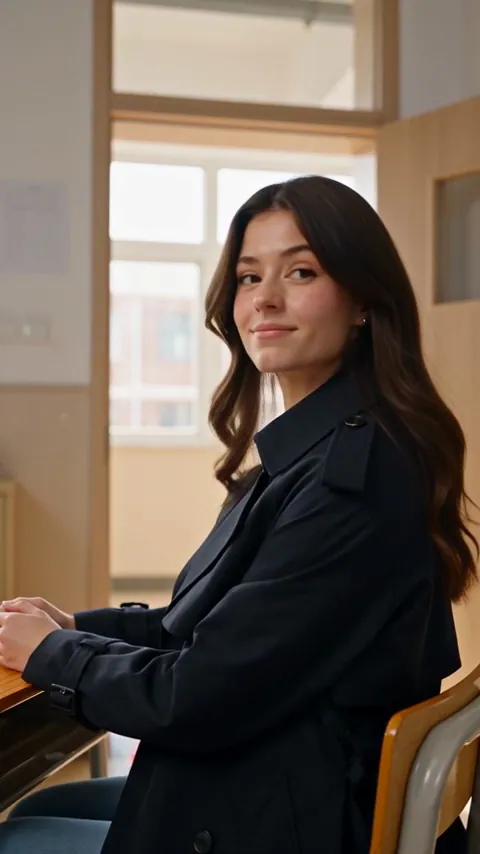 Video
I get to school on time with my skills!
I get to school on time with my skills! Upload your selfie to get the same style.
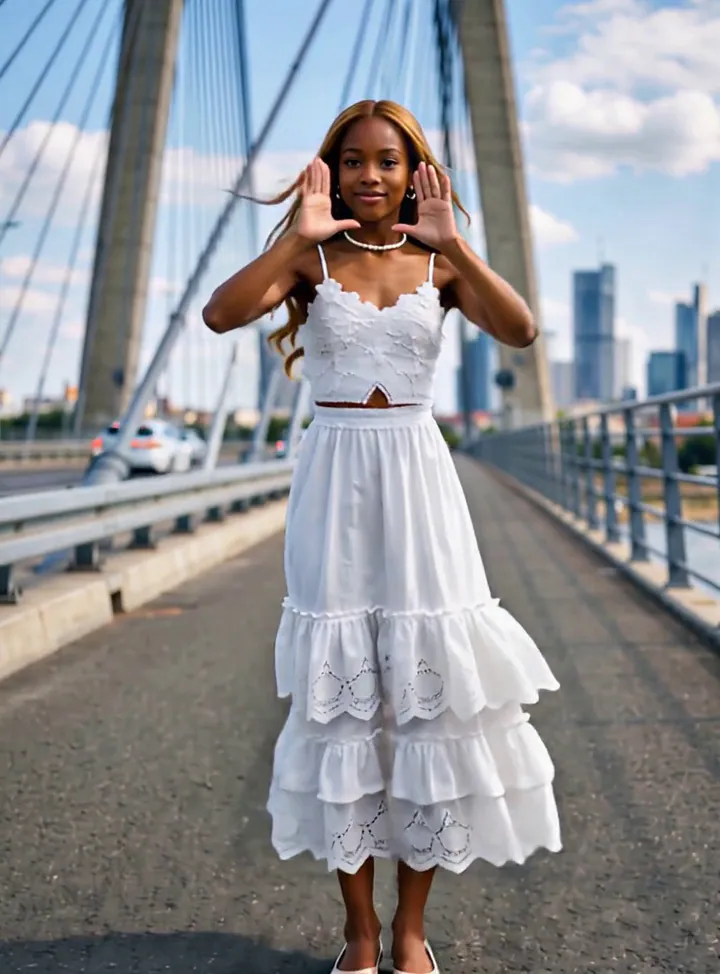 Video
Slow down the dance steps this time
Upload your own beautiful photos and get the same dance video with just one click
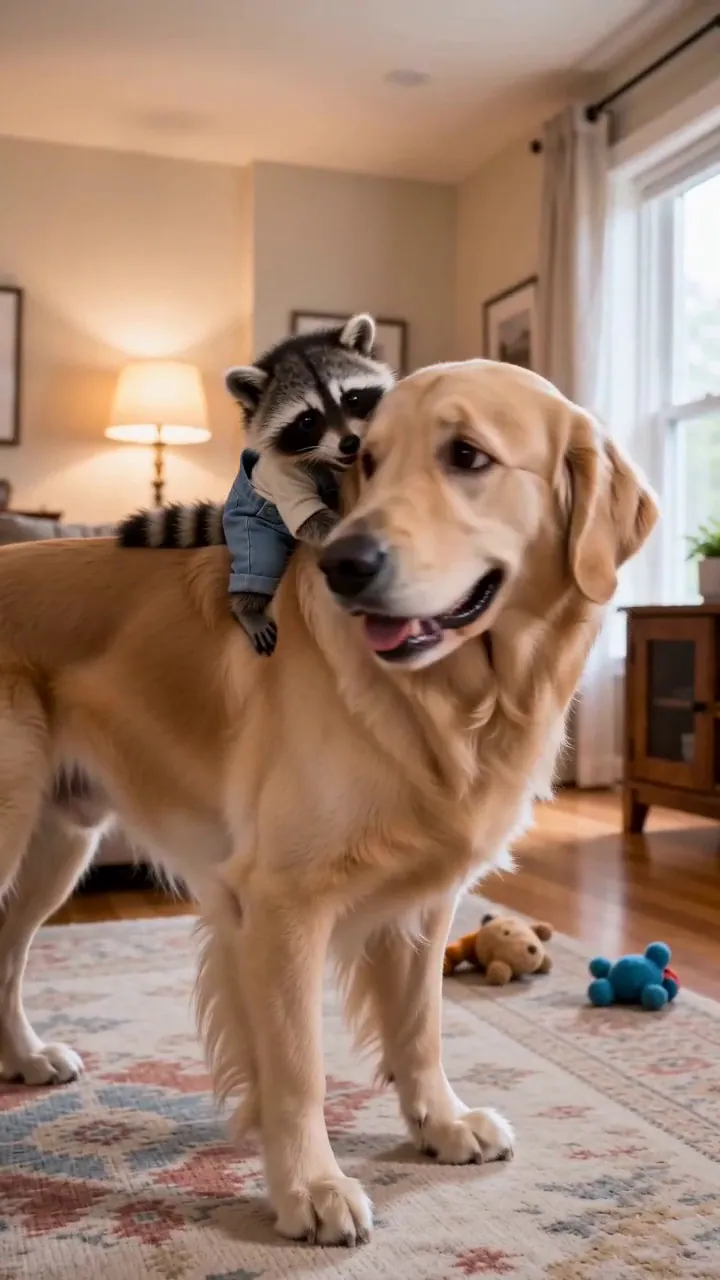 Video
Joyful Time with the Dog
Upload your photo and enjoy joyful time with the dog.
 Video
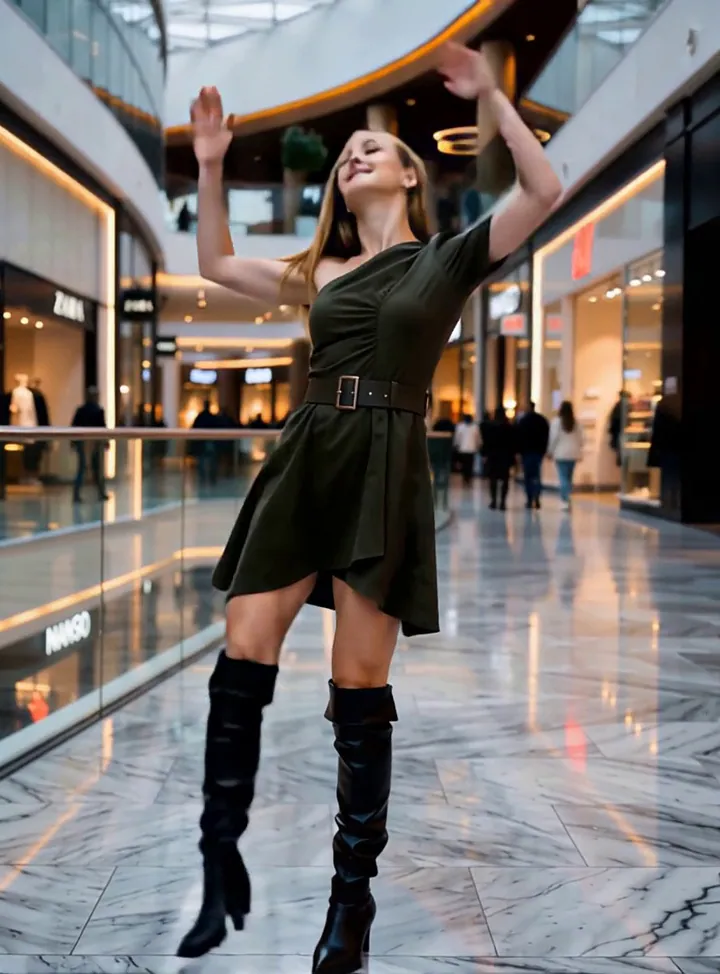
Wishing you and I both a good time
Upload your own beautiful photos and get the same dance video with just one click
 Video
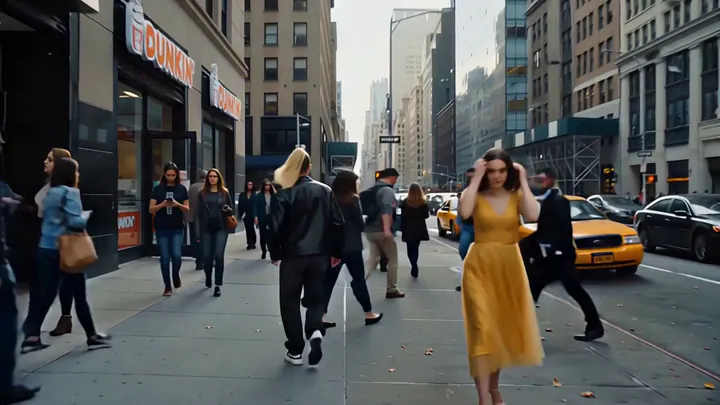
Street Time Freeze
Upload your photo and freeze time on the street.
 Video
Dance practice time
Animals that practice dance seriously are the cutest.
How to make your Time for Prayer video
- 1
Upload your photo
Pick a clear, well-lit photo where the subject is easy to see. Portraits and group shots both work — the effect adapts to your image.
- 2
Check the preview
Watch the example clip to see exactly what the effect does. Some effects also accept a short text prompt to steer the result.
- 3
Generate and download
Hit generate and watch the progress live. Your video is ready to download and share in minutes.
Tips for a better Time for Prayer video
- One clear subject. Crop out busy backgrounds so the effect locks onto the person or object you mean.
- Even, front-facing light. Faces in shadow or strong backlight lose detail once the camera moves.
- Keep the subject in frame. Heads, hands and edges cut off by the border cannot be animated back in.
- Skip heavy filters. Beauty filters and stickers confuse the template; the original photo works best.
Why create Time for Prayer videos on OmniArt
Studio-grade results
Every effect runs on a curated video template tuned for sharp motion, stable faces, and share-ready output.
Results in minutes
No timeline, no keyframes, no editing app. Upload a photo and get a finished video while you watch the progress.
Pay as you go
Each effect costs a few credits, and every result stays in your OmniArt gallery across devices.
Frequently asked questions
It turns the photo you upload into a short AI-generated video using a curated Time for Prayer template. The example clip on this page shows the exact motion you can expect.
Clear, well-lit photos with the subject fully visible give the best results. Avoid heavy filters, extreme angles, or very low resolution images.
Most videos finish within a few minutes. You can watch the progress on the page, and finished clips are saved to your gallery automatically.
Each generation costs a small number of credits, shown on the generate button. Credits come with a paid plan or a one-time credit pack.
Commercial use depends on the template, your materials, and the applicable terms. You must hold the necessary rights to everything you upload and ensure that your use of the output does not infringe any third-party intellectual property.